

Create Report
In PentestPad, you can create reports for your projects. Reports can be saved as drafts for later completion or generated immediately with downloadable files. You can also publish reports to share them with your clients.
Navigating to the Create Report page
Section titled “Navigating to the Create Report page”There are two ways to navigate to the Create Report page:
From a single project’s Reports page
Section titled “From a single project’s Reports page”Navigate to a desired project, click on Reports in the navigation on top of the project, and click the Create button.
From the all Reports page
Section titled “From the all Reports page”Open the sidebar navigation menu, click on Reports, click the New Report button, and then select the project you want to create the report for.
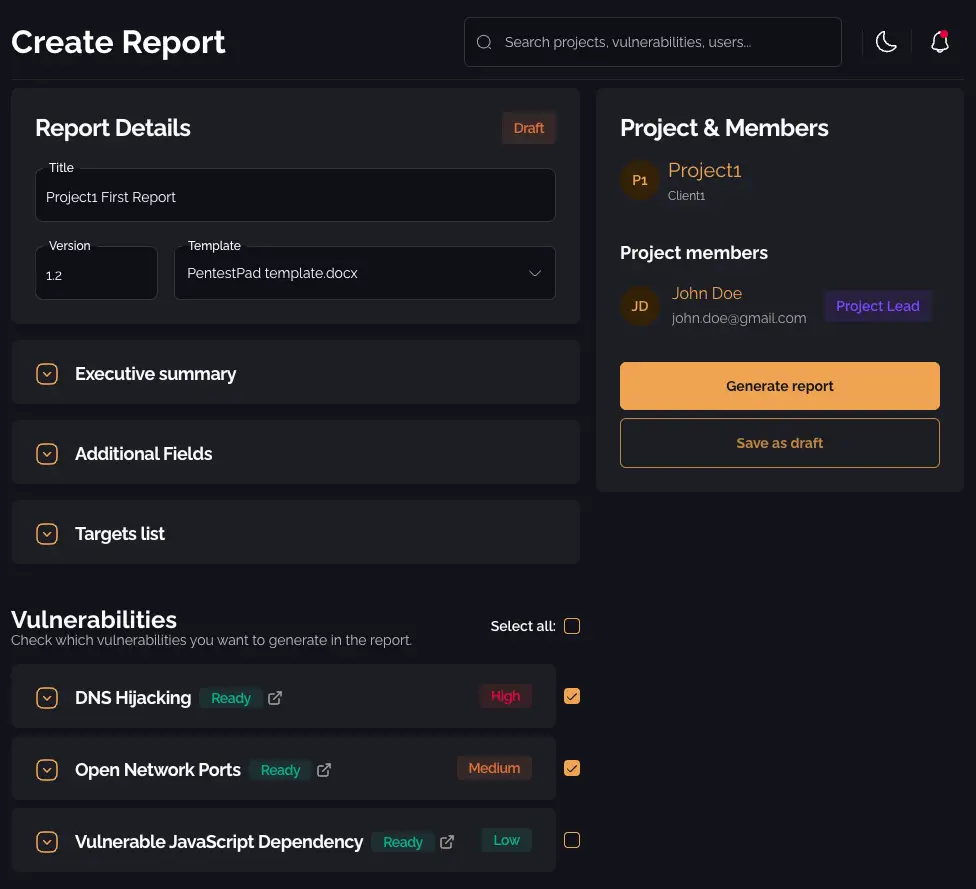
Report configuration
Section titled “Report configuration”Once you are on the Create Report page, you can configure the following:
Report title
Section titled “Report title”Change the report title which will be formatted based on the report title format settings configured for the selected template.
Version
Section titled “Version”The version number increments automatically based on how many reports you have already generated for this project. You can adjust this if needed.
Template
Section titled “Template”Select a report template from your available templates. The template determines the format and structure of the generated report.
Publish report
Section titled “Publish report”Enable the Publish option to share the report with your client. Published reports become accessible to clients through their portal.
Executive summary
Section titled “Executive summary”Write or include an executive summary for the report. You can also use an Executive Summary template by clicking the Include from a template button.
Additional fields
Section titled “Additional fields”Fill in any additional custom fields that have been configured in your report settings.
Target list
Section titled “Target list”View the target list of the project to verify the scope included in the report.
Selecting vulnerabilities
Section titled “Selecting vulnerabilities”You can view all vulnerabilities of the project and select which ones you wish to include in the report. This allows you to create targeted reports containing only relevant findings.
Saving and generating reports
Section titled “Saving and generating reports”Once you have configured the report, you have three options:
Save as draft
Section titled “Save as draft”Click Save as Draft to save your progress without generating report files. The draft can be edited and generated later.
Generate report
Section titled “Generate report”Click Generate Report to create both a Word/Excel file (depending on your template format) and a PDF file which you can download. These files can also be downloaded from the Reports page.